Clock Instructions


Building your Fourby Multifunction Clock kit.

Your Fourby Multifunction USB clock is 3D printed, we will need to do some clean up of the print before we can assemble the electronics.

Please checkย the contents of your parts bag for:

  • USB module
  • Clock Module
  • Retaining Screw

You will need the following tools to complete your Fourby USB Clockย kit build

  • Wire Cutters/Strippers
  • 2.5mm Allen Key
  • Small Connection Flat Blade screwdriver
  • A ruler or tape measure

These Instructions cover both the Discovery 1 and Discovery 2 clock variants

The photographs depict both a Discovery 1 clock and a Discovery 2 Clock

******WARNING******

For owners of a DISCOVERY 2

During this install process you will be operating the central locking button of your car, keep your keys on you. you dont want to end up locked out of your car.

Dont let this be you..!!

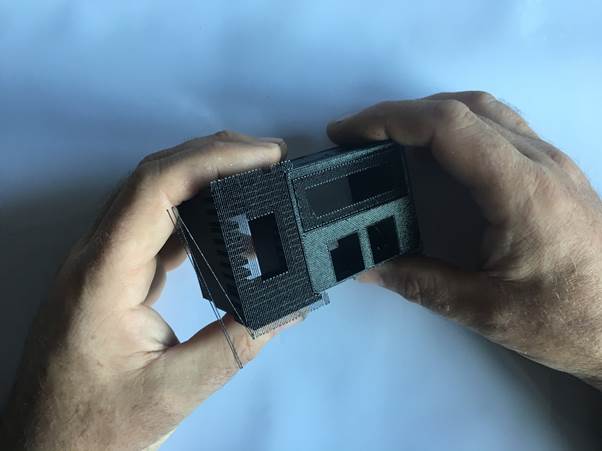
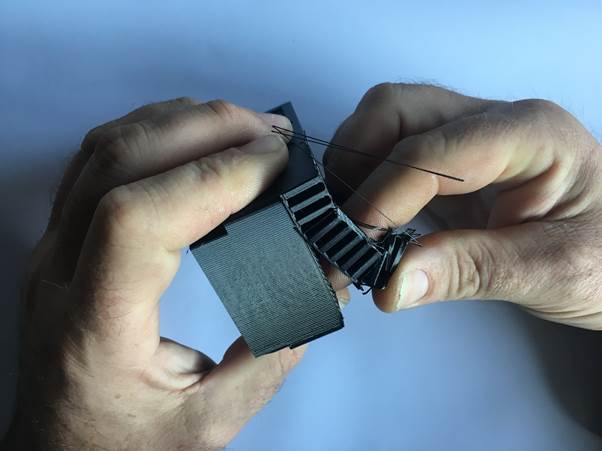
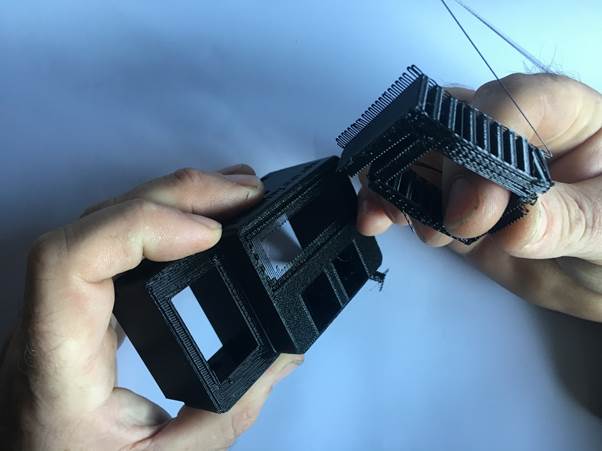
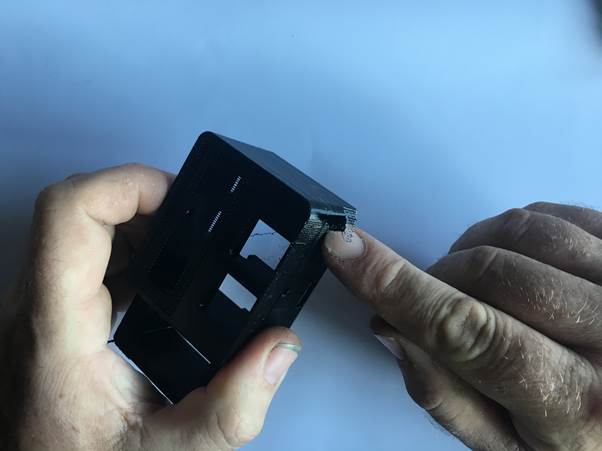
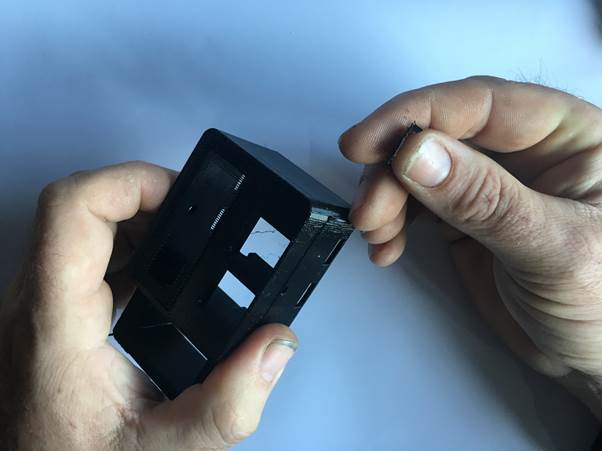
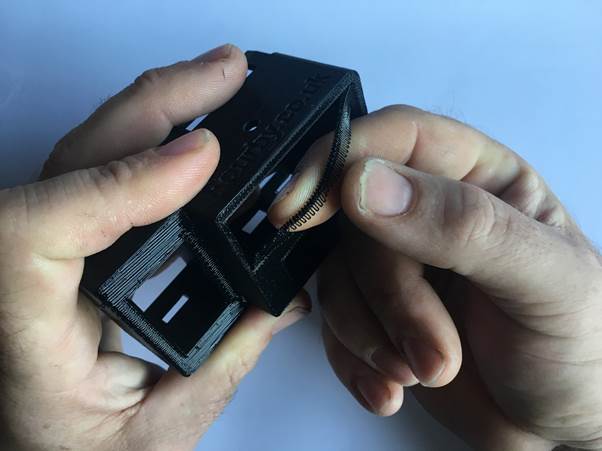
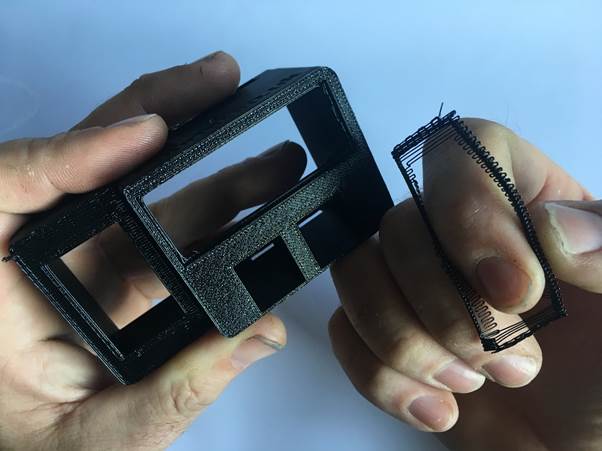
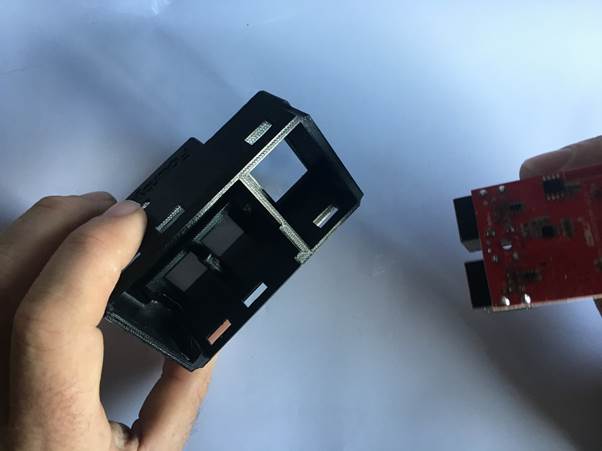
Follow the pictures below to remove the support material created during the printing phase.
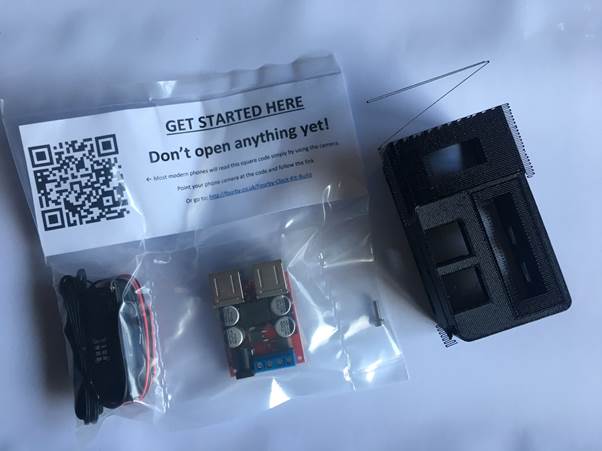
Image of a parts bag containing components for building a Fourby Multifunction USB clock kit, including a QR code sticker, USB module, clock module, retaining screw, and an instruction note.
A person holding a 3D printed Fourby Multifunction USB clock kit, showing its front and side details.

Gently remove support materialย 

A person holds a 3D printed clock module in both hands, focusing on wire connections and the assembly process.
Hands holding two 3D printed parts of a Fourby Multifunction USB clock kit, demonstrating the assembly process.

Gently remove support materialย 

A person holding a 3D-printed clock housing and carefully removing support material from the edge.
A person holding a black 3D printed clock casing, with a small part in their other hand, preparing to clean up support material.

Gently remove support materialย 

Person's hands removing the support material from a 3D printed multifunction clock kit.
Close-up of a person holding a 3D printed black clock housing while removing a support material piece from it.

Cleanup Complete, on to the the next bit….

Logo of Fourby with the British flag and website address.

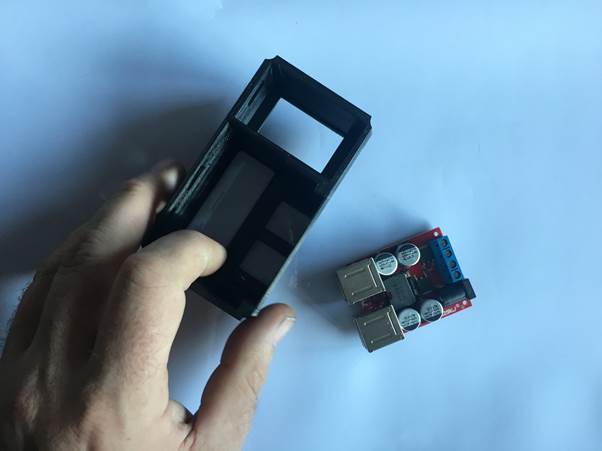
Find the USB Module from your parts bag
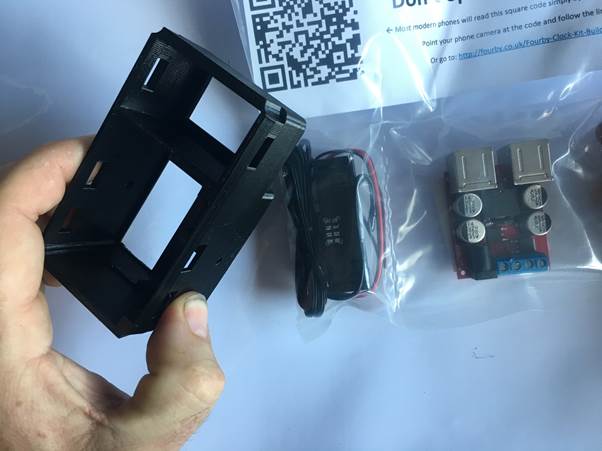
A person holding a black plastic housing for a USB clock kit, with a USB module and power cables visible in a sealed bag and a QR code notice in the background.
A hand holding a 3D printed case for a multifunction USB clock next to a USB module on a white background.
Person holding a 3D printed clock casing with an electronic module nearby

face down on a flat surface, add in the USB module
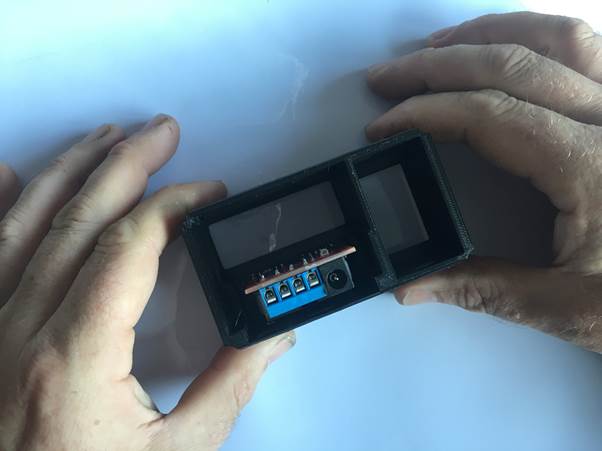
Hands holding a 3D-printed clock housing with an electronic module visible inside.

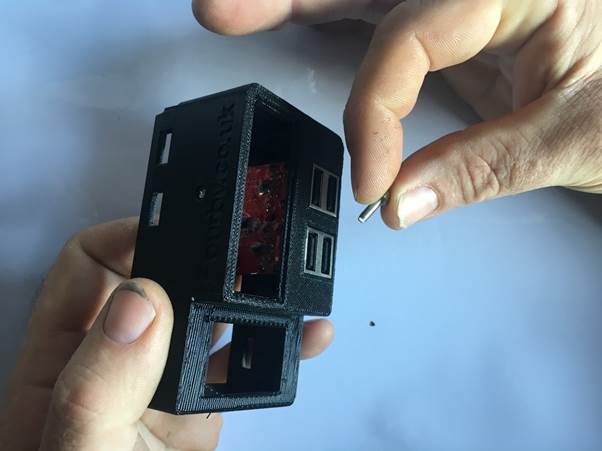
Find your retaining Screw from your parts bag
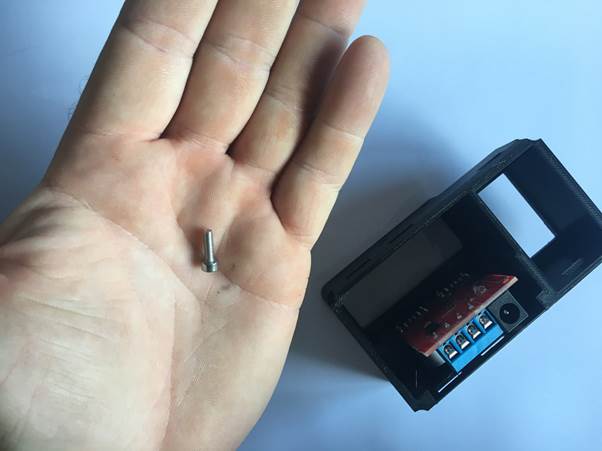
A hand holding a small retaining screw next to a black 3D printed clock housing with an electronic module inside.
Person holding a Fourby Multifunction USB clock case and a screw, preparing to assemble the clock.
Logo of Fourby.co.uk featuring the Union Jack with the text 'ENGLAND' and the website URL

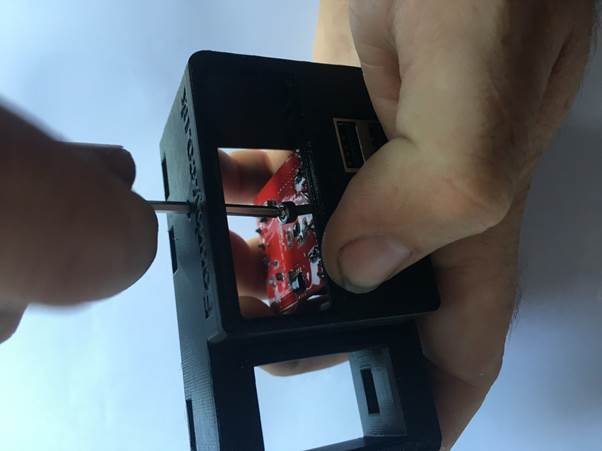
Using a 2.5mm Allen Key Add theย screw.

Important: There are no threads already, the screw will cut its own thread, take your time and allow the screw to bite and draw itself down, dont rush, its a very fine thread, torque up the screw just enough for it to be tight but dont overtighten and destroy the threads. Needle nose pliers may help here.
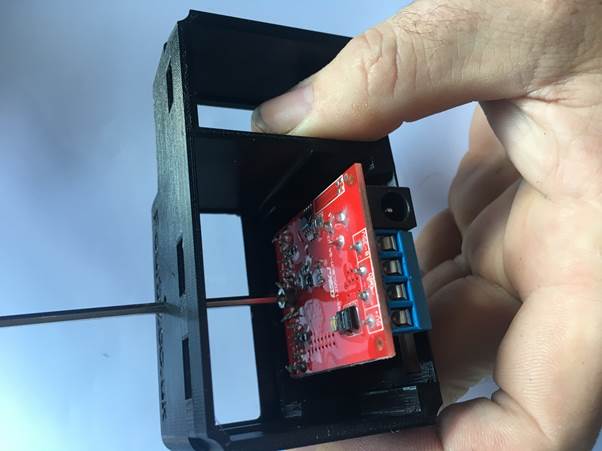
A hand holding a 3D printed clock case with a red circuit board partially inserted inside.
A close-up image of a person using a screwdriver to secure a USB module inside a 3D-printed clock housing.

USB Module done, on to the next bit….

Logo for Fourby with the Union Jack, displaying the website www.Fourby.co.uk and the word 'ENGLAND'.

Find the Clock Module from your parts bag
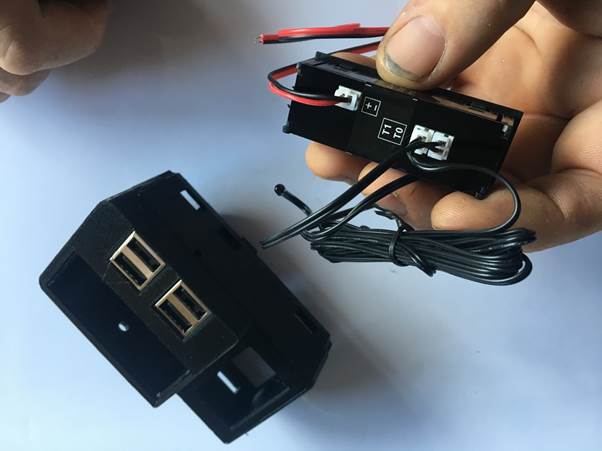
A person holding a Fourby Multifunction USB module showing red and black wires connected, with a USB socket visible on the side.

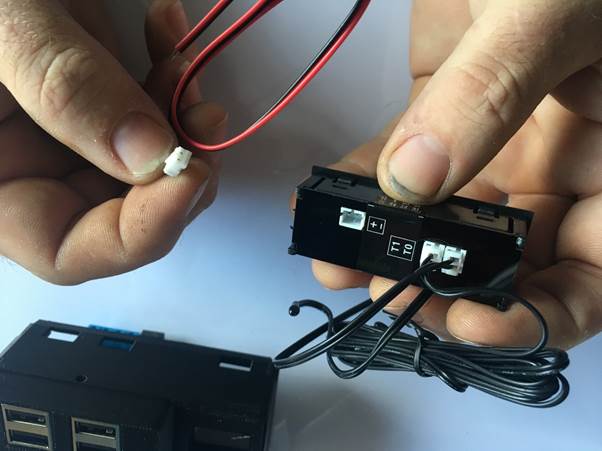
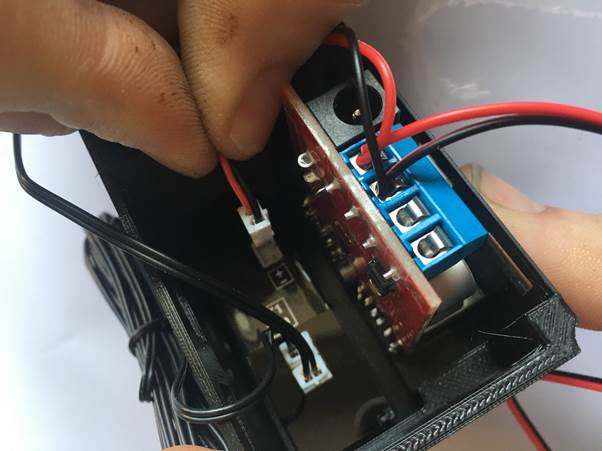
Gently Pinch the white power plug connector from the clock and remove the power cableย for now

Hands holding a USB module with wires, preparing to connect the colored wires to the module.

Offer the clock into position being carefull about the orientation, thread the temp probes though
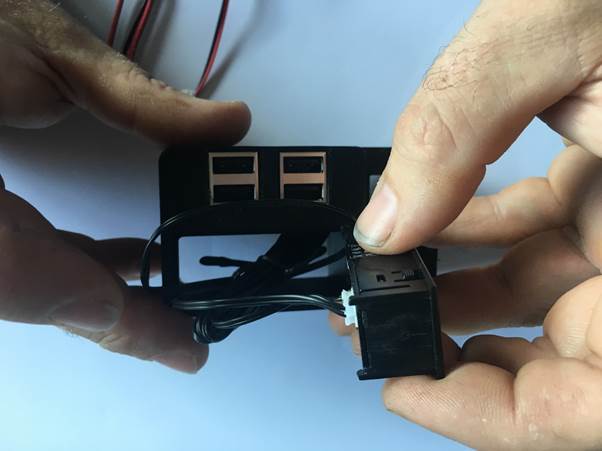
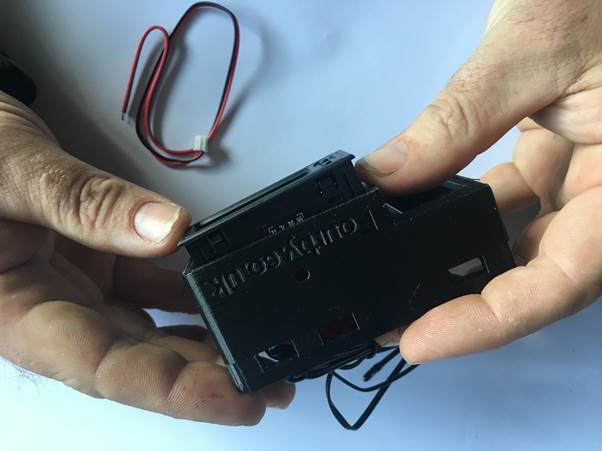
Person holding a USB module with wires attached, displaying two USB ports and a connector.
A person holding a black USB clock module, with wiring visible in the background.
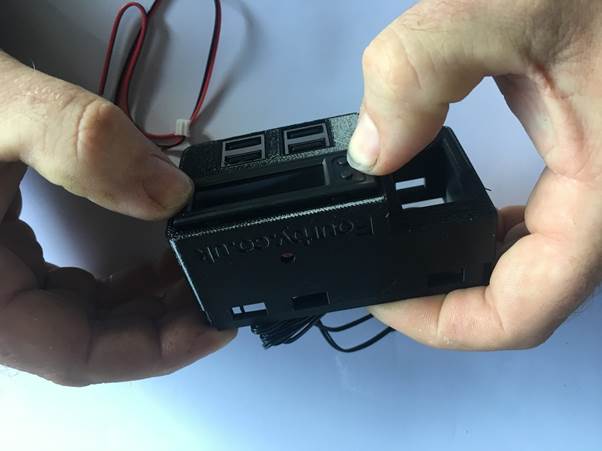
Hands assembling the Fourby multifunction USB clock, ensuring proper alignment of the components.

Make sure the two clock buttons are in the upper left and click the clock module into place

Clock Module done, on to the next bit.

Logo featuring the Union Jack with the text 'FOURBY.CO.UK' and 'ENGLAND' underneath, along with a website URL.

Next youย will Wire the clock

Take the power cable from the clock
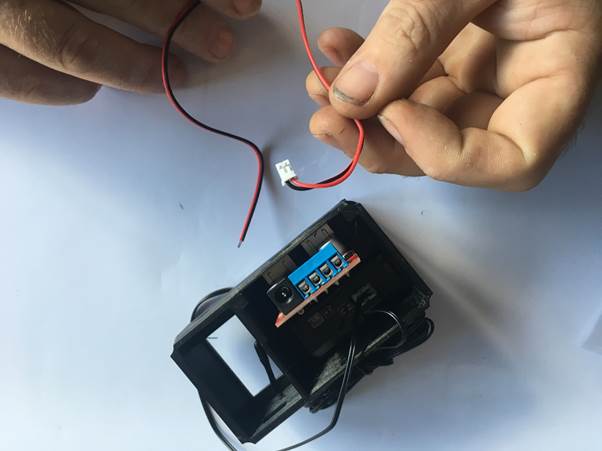
Hands connecting red and black wires to a USB module inside a clock assembly.

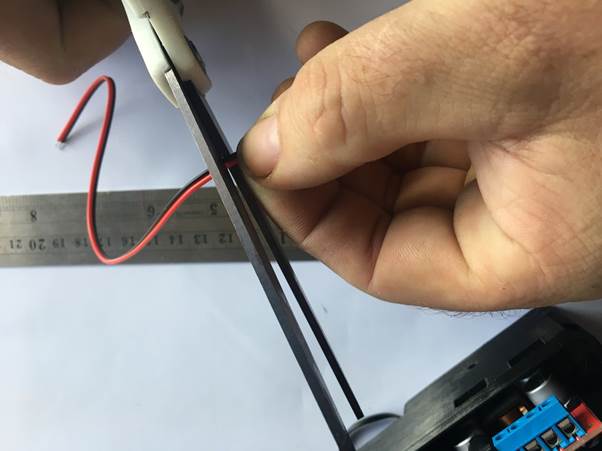
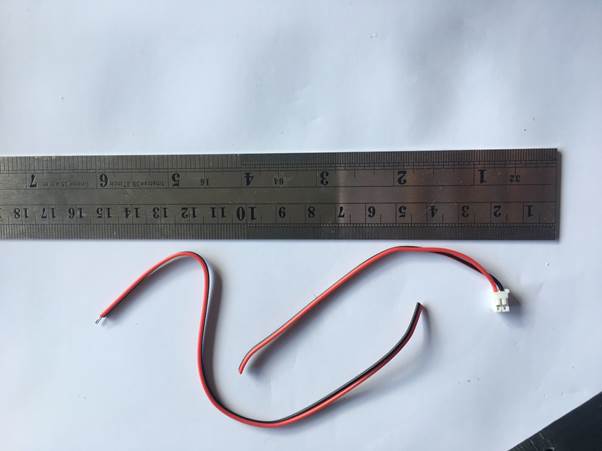
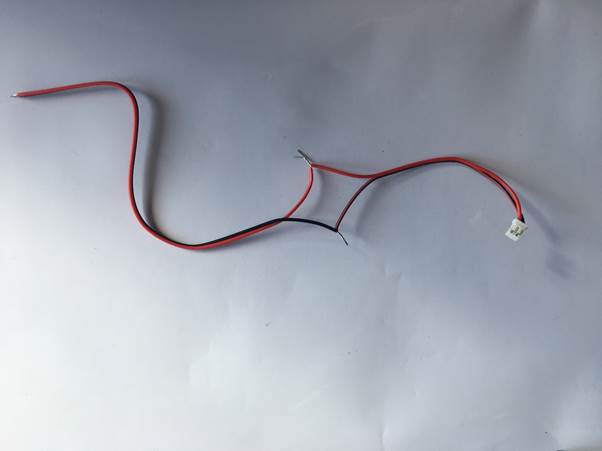
measure 4″ from the white plug and cut it
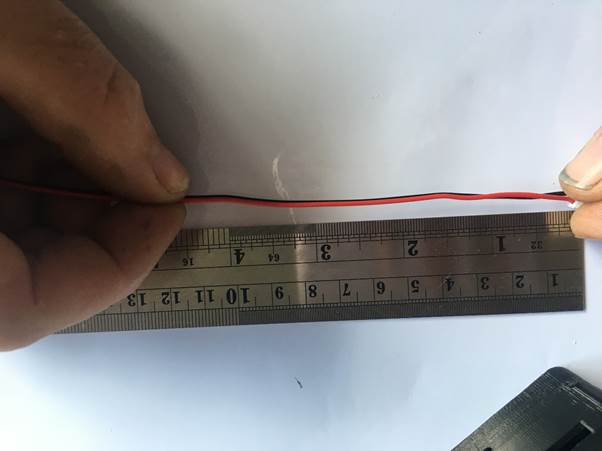
A person's hand holding a red wire against a metal ruler, measuring approximately 4 inches in length.
A person using wire cutters to cut a red wire while holding a ruler next to it.
A red and black wire with a connector on one end, positioned on a ruler for measurement.

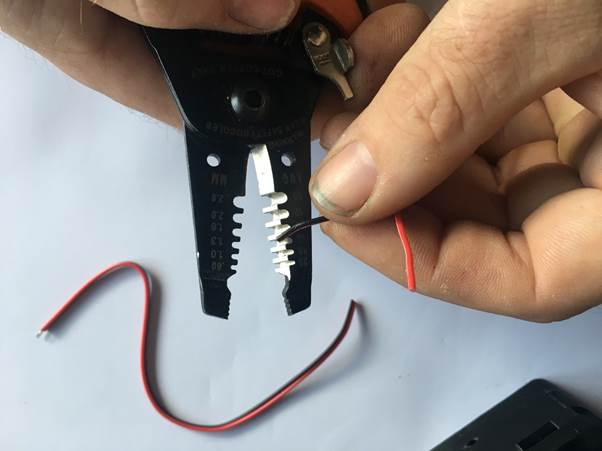
strip the new ends

A person using wire strippers to prepare a black wire for connection, with a red wire visible nearby.
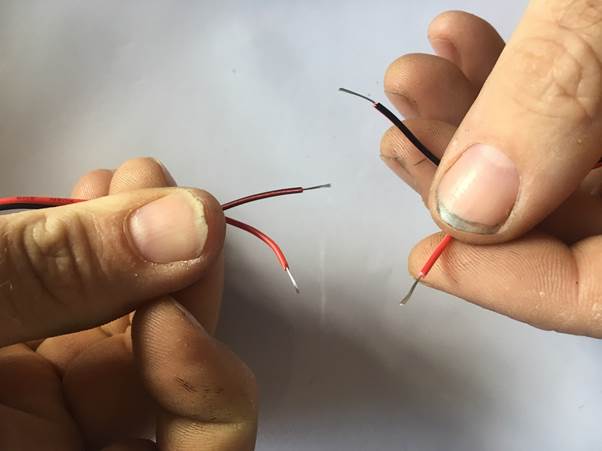
Two wires being prepared for connection, one red and one black, with stripped ends visible.

Twist them back together, Payย close attention to matching the correct colours back up
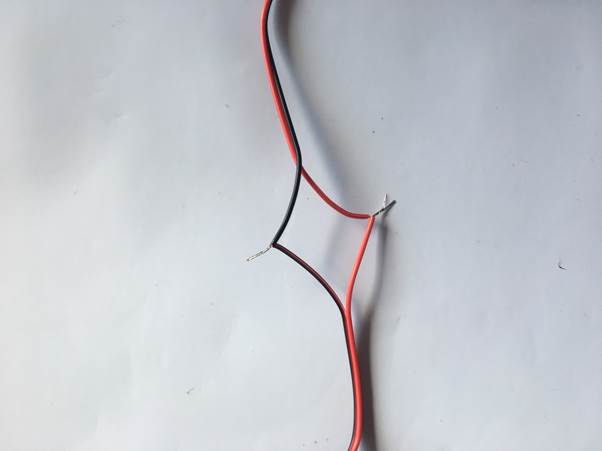
Two stripped electrical wires, one red and one black, lying on a white surface.
Two stripped electrical wires, one black and one red, connected to a small white connector.

Grab your screwdriver and screw the black wire into the connection block in the position shown. use the twists you just created into the terminal block

Pay attention to the correct hole for the BLACK wire
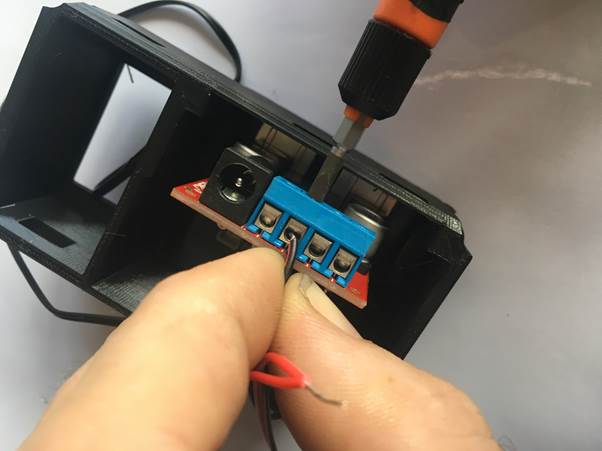
A close-up of a hand connecting wires to a terminal block in a 3D printed clock module using a screwdriver.

ย screw the REDย wire into the connection block in the position shown. use the twists you just created into the terminal block
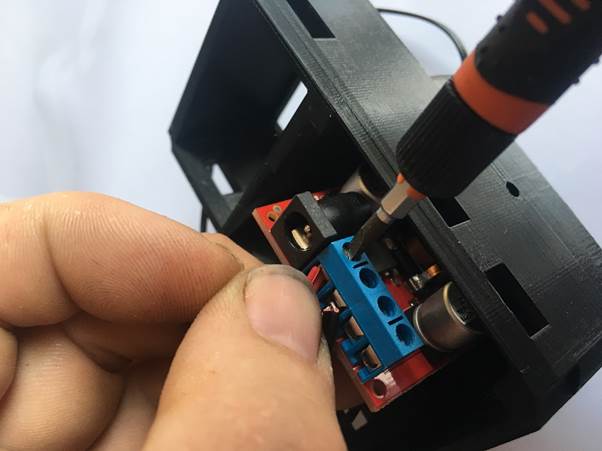
A close-up image of a hand holding a piece of electronic equipment, connecting wires to a blue terminal block using a screwdriver.

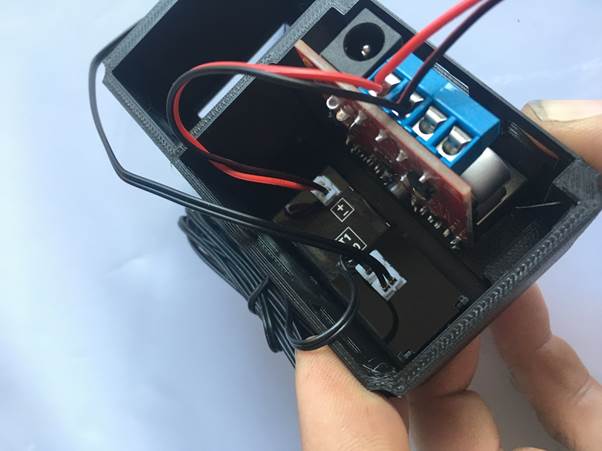
Double check you got the wires in the correct terminals
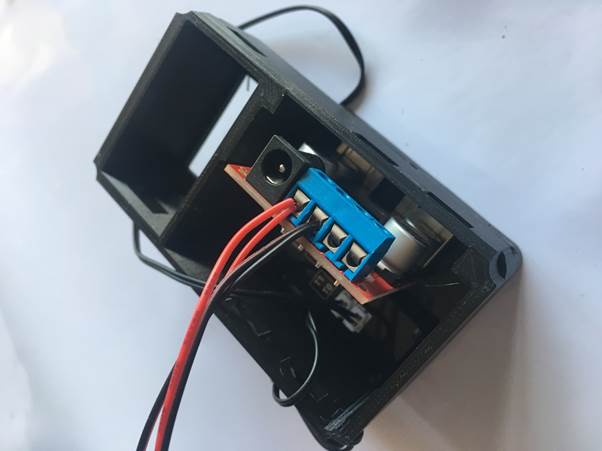
Close-up view of the interior of a Fourby Multifunction USB Clock, featuring the USB module and connected wires.

Reconnect the power supply to the clock module,ย Needle nose pliers may help here

A person connecting wires to the terminal block inside a Fourby USB clock module, with red and black wires visible.
Close-up view of the internal wiring and components of a Fourby multifunction USB clock kit, showing connections and parts layout.

Your clock is built…. Haribo Time…!!!
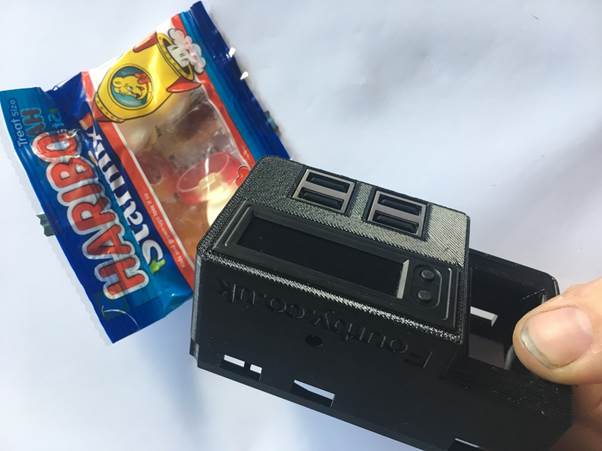
A hand holding a 3D printed USB module for a clock kit next to a packet of Haribo gummy candies.
Logo featuring the British flag with the text 'FOURBY.CO.UK' and 'ENGLAND' underneath.

Time to go to the car….

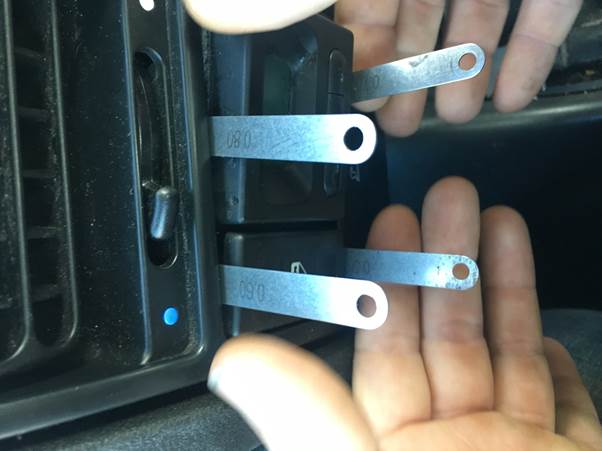
You will need a set of shims to remove the old clock,ย a set of feeler guages works a treat.

Close-up of a car's dashboard showing the installed Fourby USB clock with visible buttons and a digital display.

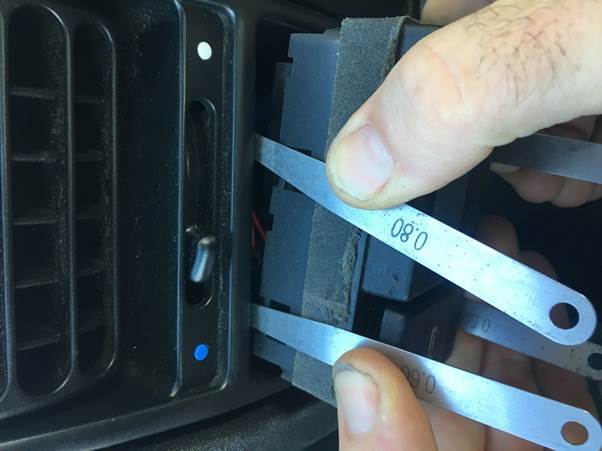
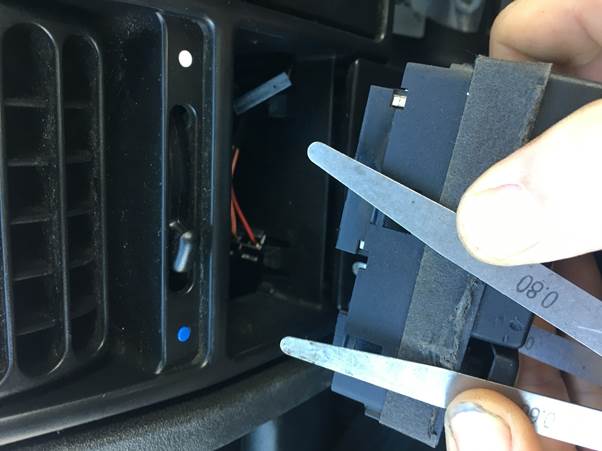
There are 4 clips that hold the original clock in, they need to be pushed back so the old clock can slide out, put your shims inย these positions and have a feel for them, once you locate them you will need to slide the shim between the clock body and the clips moulded into the dash surround, once you get all 4 the clock will come out.
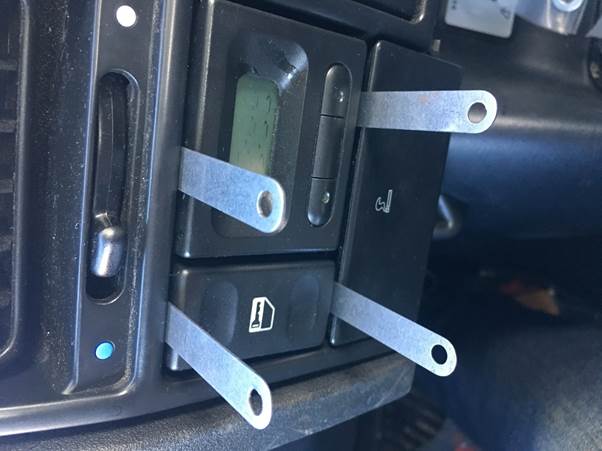
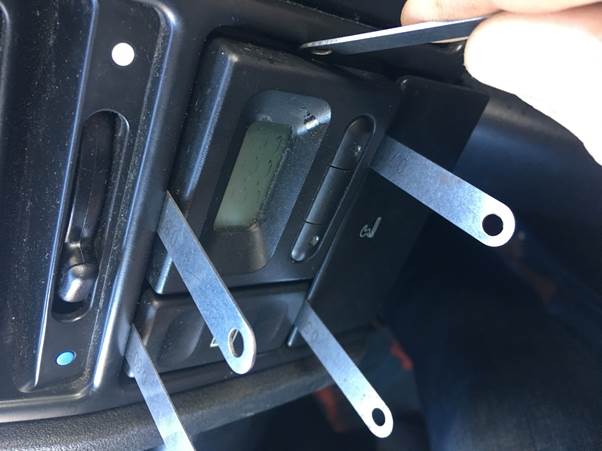
Close-up of a car dashboard with shims inserted to remove the old clock module.

A hand using a tool to remove a clock from a car dashboard, with shims positioned around the clock to assist in its removal.
Hand holding shims inserted into a car dashboard clock removal mechanism.
Hands using shims to remove a clock from a vehicle dashboard.
Close-up of hands using feeler gauges to remove the old clock from a car dashboard.

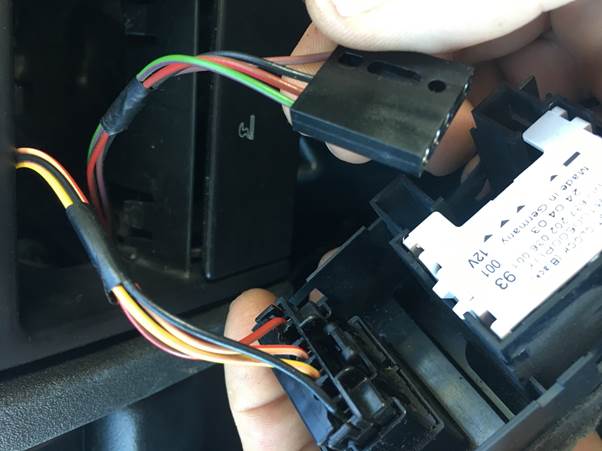
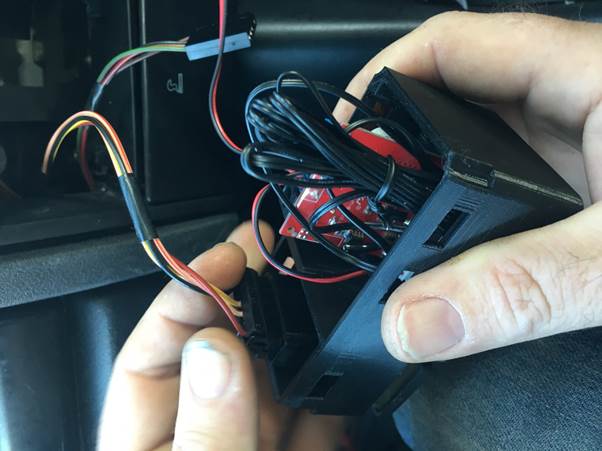
Disconnect the multi plugs

Close-up of a hand holding an electrical plug with colored wires, being connected to a dash-mounted clock module.
Logo of Fourby company featuring the Union Jack and website information.

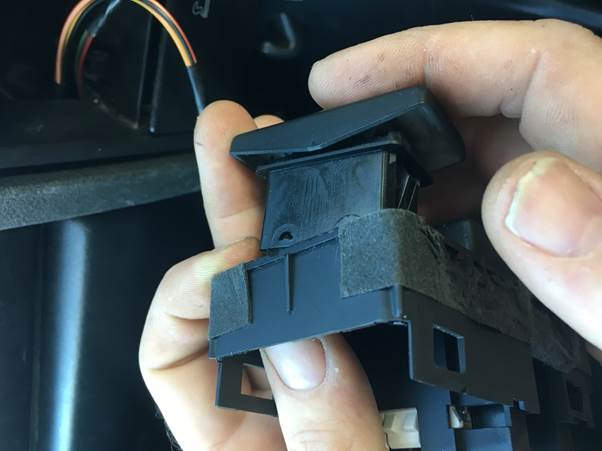
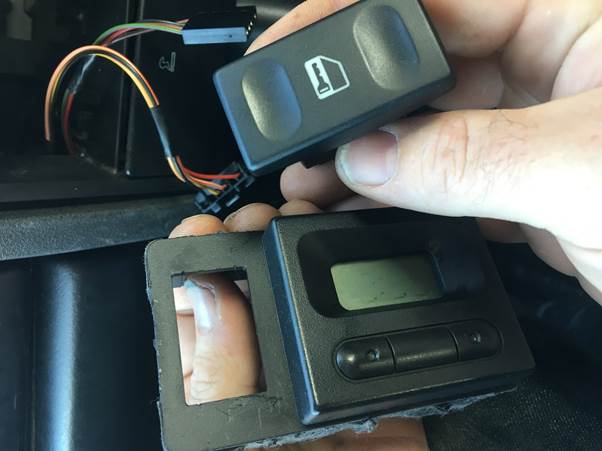
Push out the switch from the back and remove it all together
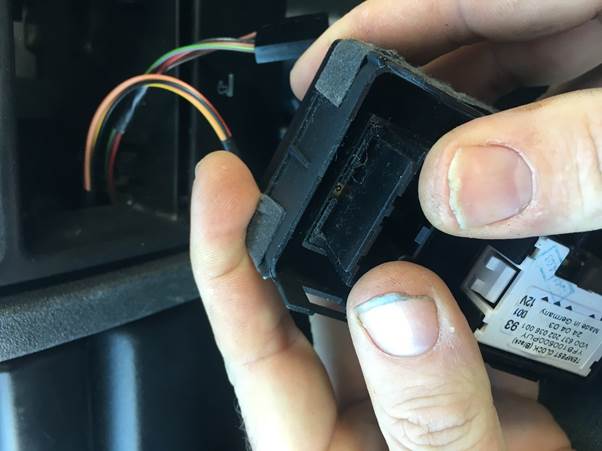
Close-up of a hand holding a car switch module while connecting wires inside a vehicle's dashboard.
A person holding a black switch component while installing it into a panel in a car, with electronic wires visible in the background.
A person holding a car clock assembly and switch while preparing for installation, with visible wiring and a dashboard background.

Thatโ€™s the old clock completely removed

Now to install your Newย Fourby USB Clock

A person holding a small black electronic device with multiple connected wires inside, preparing it for installation in a vehicle.

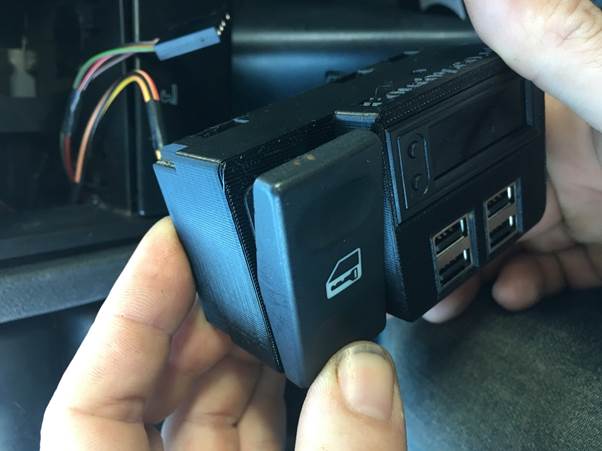
Putย the switch into your new Fourby USB Clock
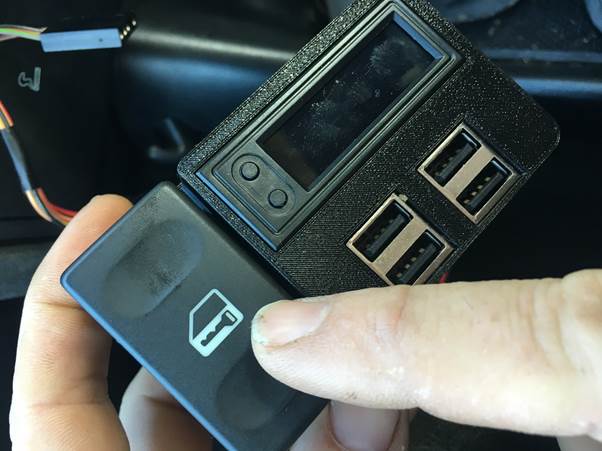
A hand holding a USB module with a display and buttons, positioned next to a car's interior.

Connect the Multiplug and test your central locking button for correct operation

A person holding a Fourby USB clock module with various connected wires, preparing to install it in a vehicle.

Route The Temp probes as needed.

Person holding the Fourby USB clock module and switch, preparing for installation.

Push the BLACK wire into the power multiplug to connect with the black wire on the cars loom
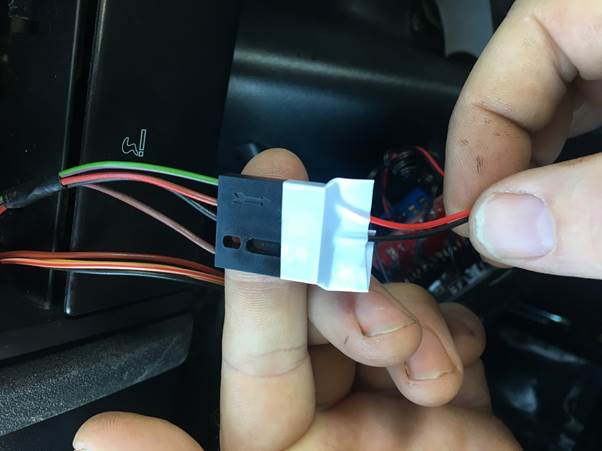
A close-up image of a hand holding a multi-plug connector with wires for a Fourby USB Clock installation, featuring labeled connections for easier setup.

Push the RED wire into the power multiplug to connect with the GREEN wire on the cars loom
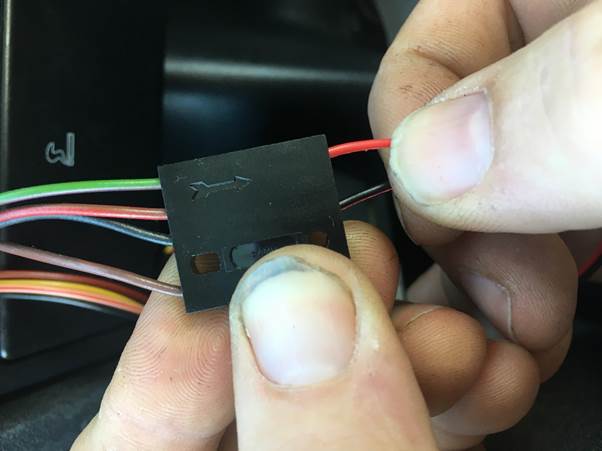
Close-up of a person connecting wires to a black plastic connector block during the Fourby Multifunction Clock kit installation.

Use tape to secure the wires.

Taping the connector might not be your idea of making a sound connection, we understand that.ย So use any method you wish to connect the wires, you could cut the cars loom and use crimp connectorsย or solder, or you could bring the original wiring loom connectors to the screw terminal block on the USB module.ย  This wiring,ย it’sย up to you….ย 

A close-up image of a person's hand holding a connector with multiple wires, including a black and red wire, indicating the installation process for a clock module in a vehicle.

One last test to verify operation, Key up the ignition and make sure the clock works

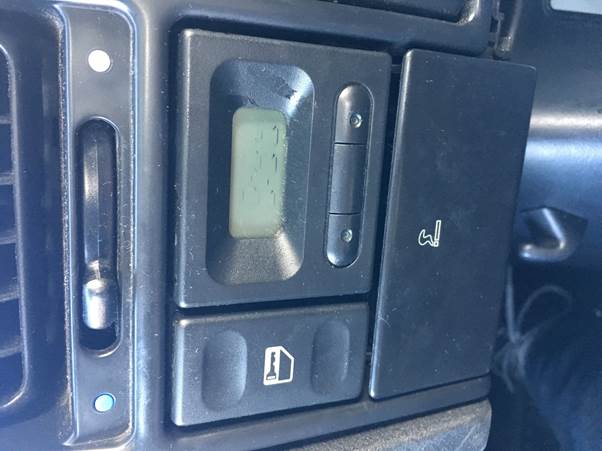
then click the clock into the dash
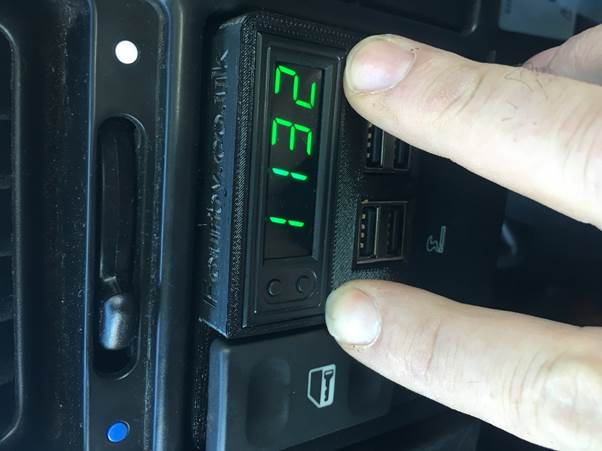
A close-up view of a Fourby multifunction USB clock installed in a car dashboard, displaying the time '2:11' with a finger poised to touch the buttons.

You have your phone in your hand and your clock installed, please would you take a photograph of your install for us ?ย ย 

It would mean the world to us if youย post it to your Facebook account with the hashtagย #Fourbyclock

Thankyou, it helps us to help you and it helps others make theirย decision…

Your Fourby Multifunction USB Clock install is now complete, next youย will setup to program and calibrate the clocks operation….

Logo of Fourby.co.uk featuring the Union Jack and the text 'FOURBY.CO.UK ENGLAND'.